As an Amazon Associate, we earn from qualifying purchases. Some links on this site are affiliate links at no extra cost to you. Our recommendations are based on thorough research and editorial judgment.


Stabilization Artifacts Explained: Warping, Wobble, and When to Turn It Off

Stabilization artifacts, including warping and wobble, occur during video stabilization processes. Warping creates bending edges due to rapid camera movements, while wobble feels like fluttering from overcorrection. Turn off stabilization when panning smoothly or filming fast action scenes to avoid these issues. Keeping stabilization off in static shots maintains authenticity. Examine footage for shaky segments, and adjust stabilization settings to reduce artifacts. Optimizing these techniques will improve overall video quality, enhancing viewer engagement further. Expert tips follow.
Key Takeaways
- Warping occurs when image edges bend due to rapid camera movements, affecting visual integrity and stabilization effectiveness.
- Wobble feels like a flutter or sway in footage, often resulting from overcorrection in otherwise stable shots.
- Disable stabilization during smooth camera panning to avoid unwanted warping effects on your video.
- Turn off stabilization in fast action scenes to prevent distracting wobble artifacts from affecting viewer engagement.
- Evaluate shot context to determine the necessity of stabilization, especially in static or complex tracking shots.
Step-By-Step Guide to Stabilizing Video in Premiere Pro

You may be interested


Hey there! If you want to make sure your videos look smooth and professional, stabilizing any shaky footage in Premiere Pro is a must. This process can really elevate the viewing experience, making it a lot more enjoyable for your audience.
First, you’ll want to import your video clip and start a new project in Premiere Pro. Once you have everything set up, just drag your clip from the preview window into the timeline. Next, head over to the Effects panel—it’s usually on the right side. You’ll find the Warp Stabilizer effect under Video Effects > Distort. Simply drag and drop that onto your clip in the timeline.
Now comes the fun part! After applying the effect, you’ll see options pop up in the Effect Controls panel. You can choose between Smooth Motion or No Motion depending on how you want your video to feel. For instance, if you’re working with action shots, like a runner in motion, you might want Smooth Motion to maintain some of that dynamic feel. Adjust the Smoothness level to control how much stabilization you want.
Give the Method Options a try as well. You can experiment with settings like Subspace Warp for flexibility or Position/Scale/Rotation for simpler stabilization. Each clip is different, so don’t be afraid to play around with these settings until you find what works best for your footage.
Finally, hit play in the Program Monitor to see how everything looks. If something seems off, adjust your parameters a bit more until you’re happy with the result. It might take a few tries, but you’ll get there! After stabilizing, you’ll want to think about adding some additional effects or transitions. Let’s explore those options next!
For optimal results, consider starting with footage captured using advanced 3-axis stabilization technology to minimize the severity of warp and wobble factors before editing.
Understanding Stabilization Artifacts: Warping and Wobble

If you’re getting into video editing with software like Premiere Pro, it’s super important to understand stabilization artifacts, especially when using the Warp Stabilizer. You might notice two common issues: warping and wobble. Warping happens when the edges of your image start bending or curving, often because of quick camera movements or busy backgrounds. For instance, if you’re panning across a cityscape rapidly, you might see those image edges distorted.
On the flip side, wobble feels like a flutter or sway, especially in shots where you expect everything to be perfectly still. This often occurs when the software tries to overcorrect a stable shot, making it look unnaturally bouncy. A helpful tip is to use the “No Motion” option judiciously, as it can sometimes lead to other kinds of artifacts if your subject isn’t moving in a way that the software can track easily.
To get a smoother result, adjust the “Smoothness” setting or explore different stabilization methods. This helps maintain a natural look in your footage, so viewers aren’t distracted by odd distortions. A little tweak here and there can make a big difference! Next, let’s chat about how to properly set your shots to minimize these artifacts right from the start. Using a camera mount can significantly reduce unwanted camera movement, helping you capture more stable footage to minimize stabilization artifacts.
How Stabilization Can Enhance Video Quality
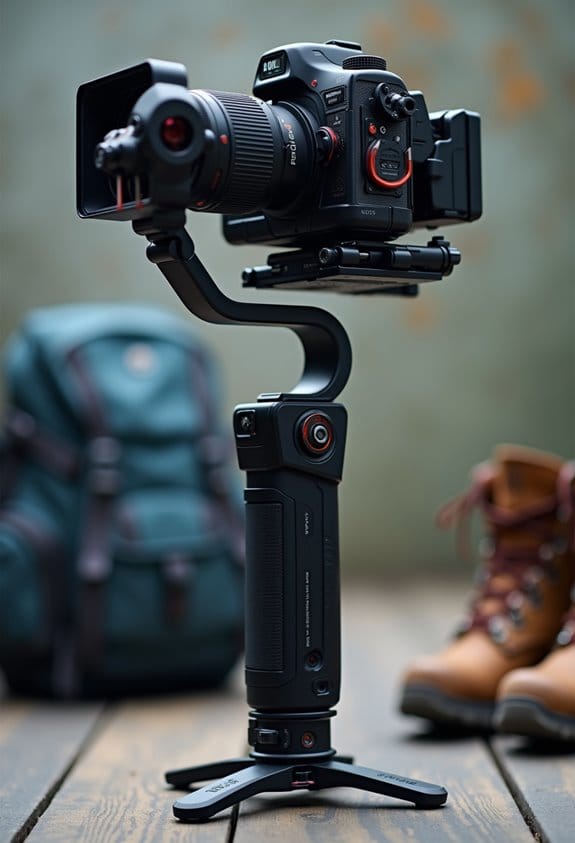
Video stabilization really does wonders for your footage by smoothing out those shaky movements. Think about when you’re watching a video and all you can focus on is the bouncing camera – it can be super distracting! The Warp Stabilizer tool in Premiere Pro is a fantastic way to fix that, making your shots so much steadier, which helps your audience connect more with what’s happening on screen.
When you apply stabilization, you have some cool options. For instance, if you want to keep a natural feel while still smoothing things out, go for the Smooth Motion setting. Or, if you’re looking to create a more dramatic effect where everything stands still, No Motion is the way to go. It’s like turning that shaky footage from your weekend adventure into something that feels more cinematic, transforming the overall production quality.
Plus, using these techniques can dramatically boost viewer engagement. You know how when you watch a well-edited video, it feels more professional? That’s the goal with stabilization – it’s all about enhancing the story you want to tell without those visual bumps getting in the way. So, ready to explore more techniques to elevate your editing skills? Keep in mind that many of the best 4K action cameras now include advanced Electronic Image Stabilization technology to minimize motion blur at the source.
Common Scenarios That Cause Warping and Wobble

Hey there! Have you ever noticed how common filming scenarios can lead to warping and wobble in stabilized footage? It can be so frustrating when your smooth shots end up looking shaky! One big culprit is rapid camera movements—when you whip the camera around too quickly, stabilization algorithms might struggle to keep things steady. Think about it like trying to catch a ball; if you move your hands too fast, you might miss it completely!
Another thing to watch out for is complex scenes with a lot of background motion. In those moments, the stabilizer can get confused and prioritize the moving background instead of your main subject. This is especially common in crowded places or when shooting nature with lots of moving elements like trees swaying in the wind.
Have you ever dealt with rolling shutter effects? If you’re using a camera with a CMOS sensor, you might see some wobble, especially when panning quickly. It feels like the image is stretching in weird ways, right? If you keep running into warping issues, take a closer look at your original footage. You might find some inconsistencies that you can fix. Adjusting your stabilization settings can often help, too.
Finally, take a moment to evaluate where you’re shooting. Try to minimize sudden movements and chaotic backgrounds whenever possible. The more control you have, the clearer your footage will be, turning your video from shaky to sensational! Happy filming!
Using a stabilizer with multiple shooting modes can also help you adapt better to different filming conditions and reduce unwanted artifacts.
When to Turn Off Stabilization?

Hey there! So, let’s chat about when you might want to turn off stabilization in your footage. While stabilization can really boost the quality of your shots, there are definitely some times when it’s better left off to avoid weird distorting effects. For example, if you’re panning the camera smoothly across a scene, those aggressive stabilization settings can sometimes create an unwanted warping effect that makes everything look a bit off.
Now, if you’re capturing fast action—like a basketball game or a busy street—turning off stabilization can help prevent those annoying wobble artifacts that can completely distract from what you’re trying to show. Plus, in static shots where you want to keep the camera’s natural motion, leaving stabilization off helps maintain that authentic feel. It’s like giving viewers a true glimpse of the scene without any added fluff.
And don’t forget about complex tracking shots! If you’re crafting intricate movements that follow a specific path, you’ll want to switch off stabilization to ensure every accent is captured perfectly. Finally, if you’re trying to showcase techniques that involve shaking or intentional camera jitters—like in a horror film to create tension—it’s best to keep stabilization off. By doing this, you respect the artistic choices that make your footage unique.
Also, using the right mount type can help reduce stabilization needs by providing a steadier base for your camera during filming.
Tips for Minimizing Artifacts
Hey there! If you’re looking to minimize artifacts in your stabilized footage, I’ve got some handy tips for you. It all starts with your setup and settings, which can really make or break the quality of your final video. For example, ensuring that your footage is well-lit and has high contrast helps the editing software, like Adobe Premiere Pro, track movement more accurately.
Another quick tip? Lower the Smoothness parameter from the default of 100% a little. This way, your footage retains some natural motion, which helps avoid that weird image warping you sometimes see. And don’t be afraid to play around with Warp Stabilizer’s methods! Switching from Subspace Warp to something like Position or Perspective can sometimes be the key to better results based on your specific scenes.
If you’re using a camera with a CMOS sensor, check out the Rolling Shutter Ripple Adjustment feature. This is particularly useful for fixing the wobble you might notice in fast-moving scenes. And remember, a little prevention goes a long way! Using tools like gimbals or tripods during filming helps keep that shaky footage at bay, so you won’t have to rely too heavily on post-production fixes. Ready to dive into lighting and shooting techniques next?
Also, incorporating action camera lights can significantly improve footage stability by providing consistent illumination, which aids in better image tracking during stabilization.
Alternative Stabilization Techniques You Should Try
Hey there! So, when it comes to stabilizing your video, lots of folks lean on software solutions, but exploring alternative stabilization techniques can really up your game. Have you ever tried using After Effects? Its Tracker and Stabilizer give you more control than Premiere Pro’s Warp Stabilizer, which is super handy for those tricky scenes with lots of movement. For example, if you’re working on a dance video or a sports clip, the Tracker can help you keep the focus on your subject while smoothing out the shaky bits.
If you’re feeling adventurous, consider checking out some third-party stabilization plugins. They can offer features that may give you the edge in achieving a smoother finish. And if you’re comfortable with After Effects, using manual stabilization with motion tracking and keyframes can be incredibly precise, letting you polish those details exactly how you want them.
Don’t forget about the actual capture process, too! Tools like tripods or gimbals can stabilize your shot right from the start, reducing how much work you need to do in post-production. Lastly, if you find a stabilization setup that works, save it as a Preset. This simple trick can help you maintain a consistent look across your projects, making your workflow smoother next time around. Also, when filming outdoors, using waterproof camera bags can protect your gear and keep your stabilization efforts safe from unpredictable weather. So, what’s next on your editing journey?
How to Adjust Warp Stabilizer Settings for Optimal Results
Hey there! If you’re looking to get the most out of Warp Stabilizer settings, you’re in for a treat because there are some easy tweaks that can really enhance your footage. First off, pay attention to the Smoothness parameter. It’s tempting to crank it up high, but too much can lead to that weird wobble effect that nobody wants. For instance, if you’re working with a handheld shot, try starting around 50% and adjust from there.
Now, if you find that your footage is still bouncing around, consider changing the Warp Method. Switching from Subspace Warp to Position or even Position/Scale/Rotation can yield much steadier results, especially if you’re dealing with a lot of movement. Also, if you’re concerned about losing too much of your frame with stabilization, the “Crop Less Smooth More” option can help strike a balance—great for preserving your original shot while keeping things steady.
Another tip is to use the Detailed Analysis feature when you’re dealing with tricky scenes. It helps track movement more accurately, which can make a big difference in those complex shots. And don’t forget about Edge Feather and Edge Cropping! These options can help blend the stabilized edges with your original footage, ensuring everything looks seamless and natural.
To keep your footage looking its best, remember that regular maintenance of your camera lens with ammonia-free cleaning solutions can prevent unwanted smudges or dust that might affect image clarity during stabilization.
Best Practices for Reducing Shaky Footage
Hey there! If you’re looking to cut down on shaky footage while filming, I’ve got some handy tips for you. First off, using stabilization gear like tripods or gimbals can make a huge difference right from the get-go. These tools help keep your camera steady and focused, so you’re already on the path to smoother shots.
When you’re setting up your camera, it’s a good idea to choose higher frame rates and resolutions. For instance, filming at 60 frames per second can give your video that buttery smooth look, especially if you plan to do any post-production stabilization later. And when you’re shooting, try to slow down a bit. Move deliberately, and if you can, brace your camera against something solid—like a wall or a tree—when filming handheld. That can totally reduce unwanted shakes.
Also, keep an eye on your framing and composition. Remember, even if your footage is stabilized, bad framing can still distract your audience. For example, if you’re shooting a beautiful landscape, make sure to avoid heavy winds by picking a calm day to shoot. All these little things add up, and they’re key to making sure your films come across as polished and professional.
Additionally, using a sturdy camera mount can enhance stability and further reduce vibrations during dynamic filming.
With these techniques in your back pocket, you’ll be well on your way to creating captivating video content that stands out!
Frequently Asked Questions
How to Make Warp Stabilizer Less Wobbly?
To make Warp Stabilizer less wobbly, one can apply various stabilizer techniques, such as switching to Position Only, lowering the Smoothness parameter, and using Crop Less Smooth More, while focusing on detailed footage analysis for accuracy.
Should Stabilizer Be on or Off?
The stabilizer should be off for static shots or minimal shake, preserving original quality. For shaky footage, enabling the stabilizer can enhance stability, though the impact on overall visual integrity depends on the chosen stabilization settings.
How to Get Rid of Warp Stabilizer Warning?
To eliminate the Warp Stabilizer warning, one should guarantee proper footage settings, adjust the Smoothness, clear media cache, verify GPU compatibility, or isolate problematic clips. Effective application of these stabilization techniques can resolve such warnings efficiently.
What Does the Warp Stabilizer Effect Do?
Ninety percent of handheld footage suffers from noticeable shake. The Warp Stabilizer effect employs advanced stabilizer techniques to analyze and minimize this camera movement, creating smoother visuals that enhance the overall quality and viewer experience.


